
Kandev documentation
Office mode
Understand Office workspaces, persistent agent teams, and the guides for setting up and operating them.
Office lets you organize persistent agent teams around projects, assign work, schedule routines, and review the results from one workspace.
Office is experimental and disabled by default in production. Enable it explicitly to evaluate it. Its UI, background automation, and configuration may change between releases; these guides describe the current implementation, not a stable production contract.
Start here
- Get started: enable Office, configure execution profiles, create a workspace, and give its coordinator a first task.
- Configure an agent team: set responsibilities, reporting relationships, instructions, skills, permissions, and execution choices.
- Manage Office tasks: connect projects to repositories, assign tasks, use subtasks and blockers, and work through reviews and approvals.
- Schedule routines: automate recurring work, choose concurrency and catch-up behavior, and inspect runs.
- Operate an Office workspace: monitor activity, control spend, pause work, recover agents, and manage configuration.
- Provider routing and Config sync: detailed configuration references.
How Office fits together
An Office workspace holds the team, its projects, tasks, routines, and workspace settings. The workspace picker labels Office and Kanban workspaces separately. Selecting a workspace changes which team's work you see; it does not stop another workspace's agents.
An Office agent is a persistent identity with a name, role, instructions, skills, permissions, and history. An execution profile selects the provider CLI, model, and launch settings used to run that identity. An executor selects where the process runs. Changing a provider does not create a new Office team member.
A project groups work and supplies repository sources and execution defaults. A task holds a concrete goal, conversation, documents, assignee, and workflow position. Reviewers and approvers can participate in the same task without replacing its primary assignee.
A run is an individual attempt to wake an agent for a reason, such as an assignment, comment, or routine. A successful run does not by itself mean the task is complete: the workflow and its decisions still govern completion.
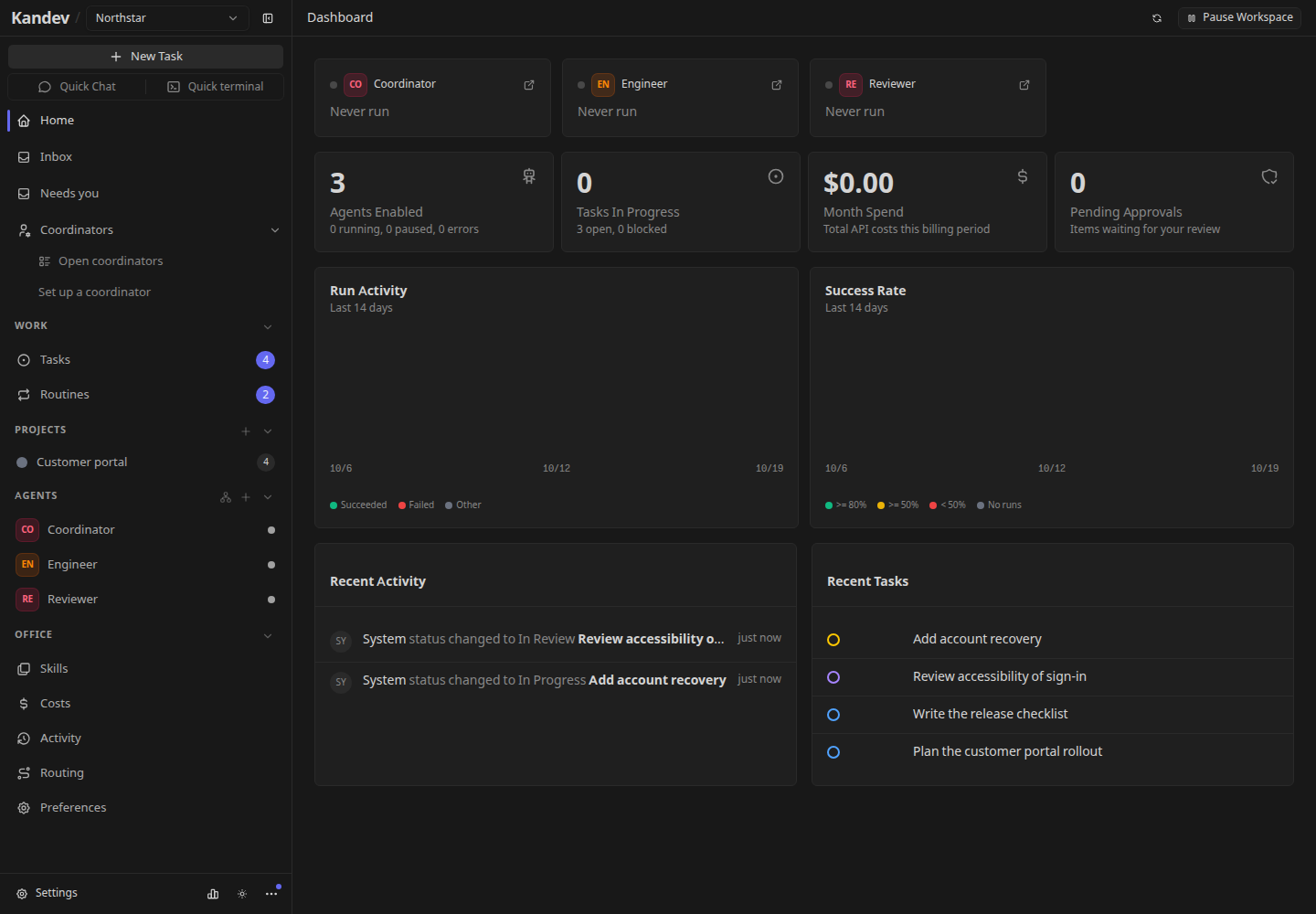
The dashboard is the team's overview. Open Tasks for delivery progress, an agent for its configuration and runs, Inbox for items needing attention, and Activity for the workspace's event history.
The default delivery flow
The default Office workflow has five stages:
- Backlog: work waiting to be started.
- Work: the primary agent works on the task. The workflow requires an explicit completion signal before automatic advancement.
- Review: reviewer participants inspect the result. All required approvals allow advancement; a rejection sends the task back to Work.
- Approval: approver participants make the final decision. All required approvals allow advancement; a rejection returns it to Work.
- Done: entry into the terminal step completes the task.
Review and Approval can create an automatic participant seat when one is needed. A task can therefore be waiting for a reviewer or approver to be selected, or for a recorded decision, even while no agent is running. See reviews and approvals.
Start with a small team
Begin with one coordinator, one bounded task, and a project you can inspect. Review the coordinator's proposed plan before expanding the team or enabling recurring work. Office provides approval controls, permissions, budgets, and a workspace pause, but those controls do not replace reviewing instructions and executor access.
Office routines and teams are separate from regular Kanban workspace automations. Workflow YAML import/export covers regular Kanban workflows and excludes Office workflows. See Feature status for the supported regular-Kanban boundary.
The workspace Coordinators, Needs you, and Queue surfaces have their own coordinator autonomy settings. Configure an Office CEO under Agents, and use Office routines, budgets, and workspace pause to control this team's work.